Upcoming Appointments Panel
The Upcoming Appointments panel is used to view the number of upcoming service appointments for the next five business days. This panel can also be used to view the leads associated with upcoming appointments.

|
The Upcoming Appointments panel displays on the Service Traffic screen. To access the Service Traffic screen, click the |
 (Service Traffic) icon.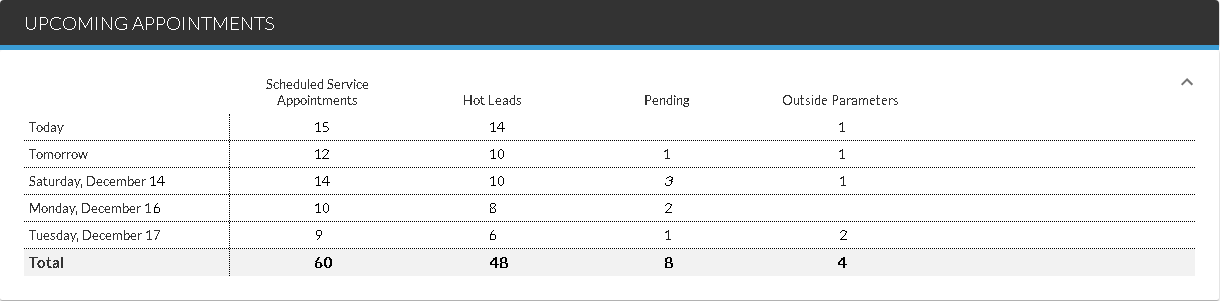
The columns in the Upcoming Appointments panel display the number of service appointments for the next five business days. The status of proposals associated with the scheduled service appointments, such as Hot Leads or Pending, also display.
To view additional details about individual service appointments, click a number in the Hot Leads column, the Pending column, or the Outside Parameters column. For example, to view additional details about the hot leads for tomorrow, click the number in the Hot Leads column in the Tomorrow row. Criteria matching the selection is automatically entered on the Search Criteria panel, and details about each pending service lead for tomorrow display on the Results panel.
The following columns are available in the Upcoming Appointments panel.
Date: (Not labeled) The next five business days for the service department display. Business days can be defined in the Schedule Settings panel on the General Settings screen.
Scheduled Service Appointments: The number of scheduled appointments for the corresponding date displays.
Hot Leads: (Link) The number of appointments that have been identified as hot leads displays as a link. Click a number in this column to view additional details about these appointments in the Results panel.
Note - Settings for automatically identifying service appointments as hot leads are defined on the Overall Filters screen.
Pending: (Link) The number of service appointments that have not yet been identified as hot leads displays as a link. Click a number in this column to view additional details about these appointments in the Results panel.
Note - Settings for when pending service appointments are identified as hot leads are defined on the General Settings screen.
Outside Parameters: (Link) The number of appointments that did not meet the dealership's requirements for hot leads displays as a link. Click a number in this column to view additional details about these appointments in the Results panel.
Click here for a list of products that may be mentioned in this help file.